

Fields & Tags
Define account-level fields and tags, then enable them per agent under Agents → Fields & Tags.
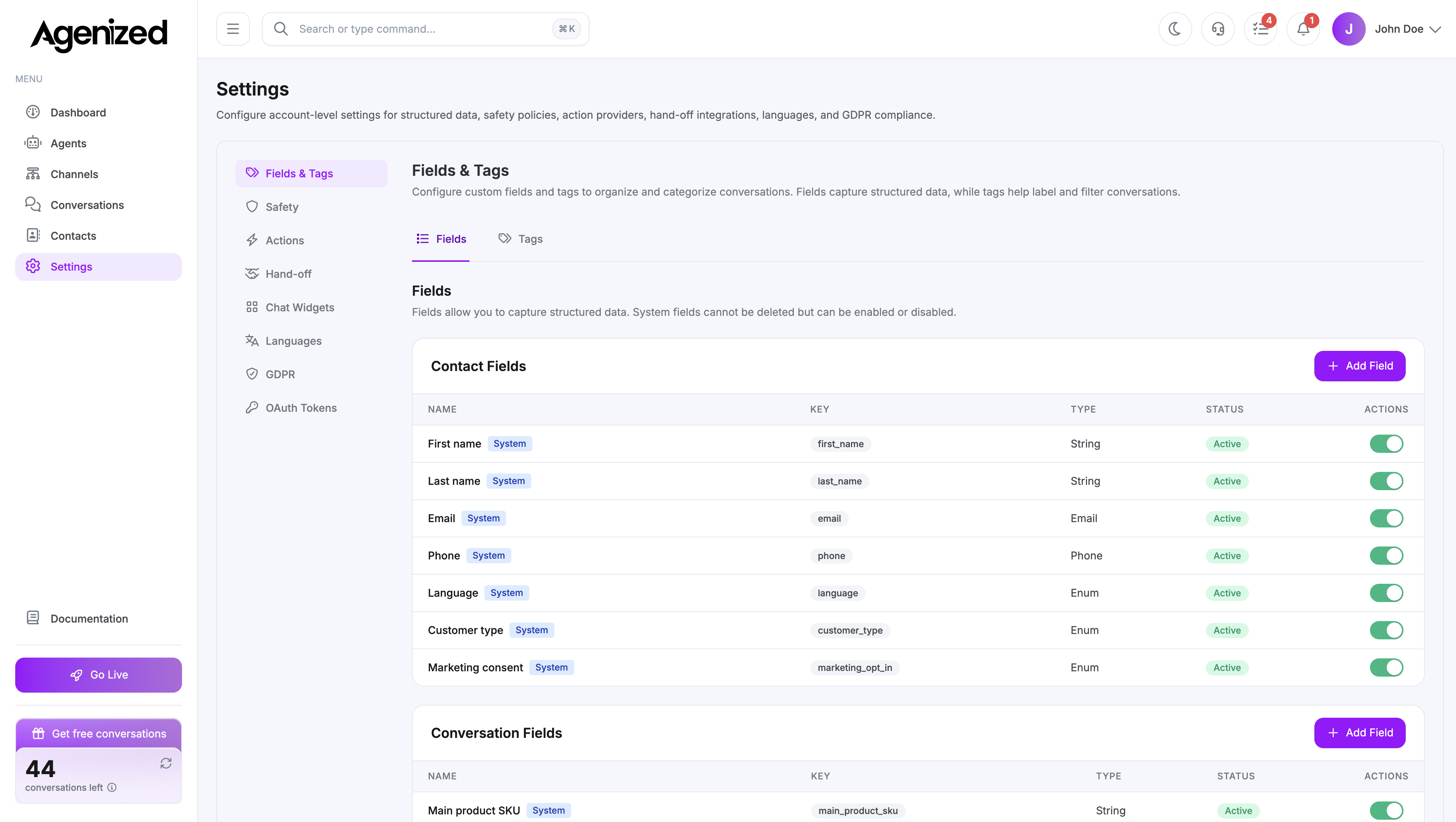
Settings → Fields & Tags is where you define structured data and labels for your workspace. Fields capture values (strings, numbers, enums, and so on). Tags label conversations or contacts for filtering and reporting. System fields and tags cannot be deleted, but you can enable or disable them.
After definitions exist, each agent chooses which fields to auto-populate and which tags to auto-apply in Agents → Fields & Tags.
Fields
Open the Fields tab. Fields are grouped into Contact fields (stored on the person) and Conversation fields (stored on the thread). Use Add Field on a section to create a custom field.
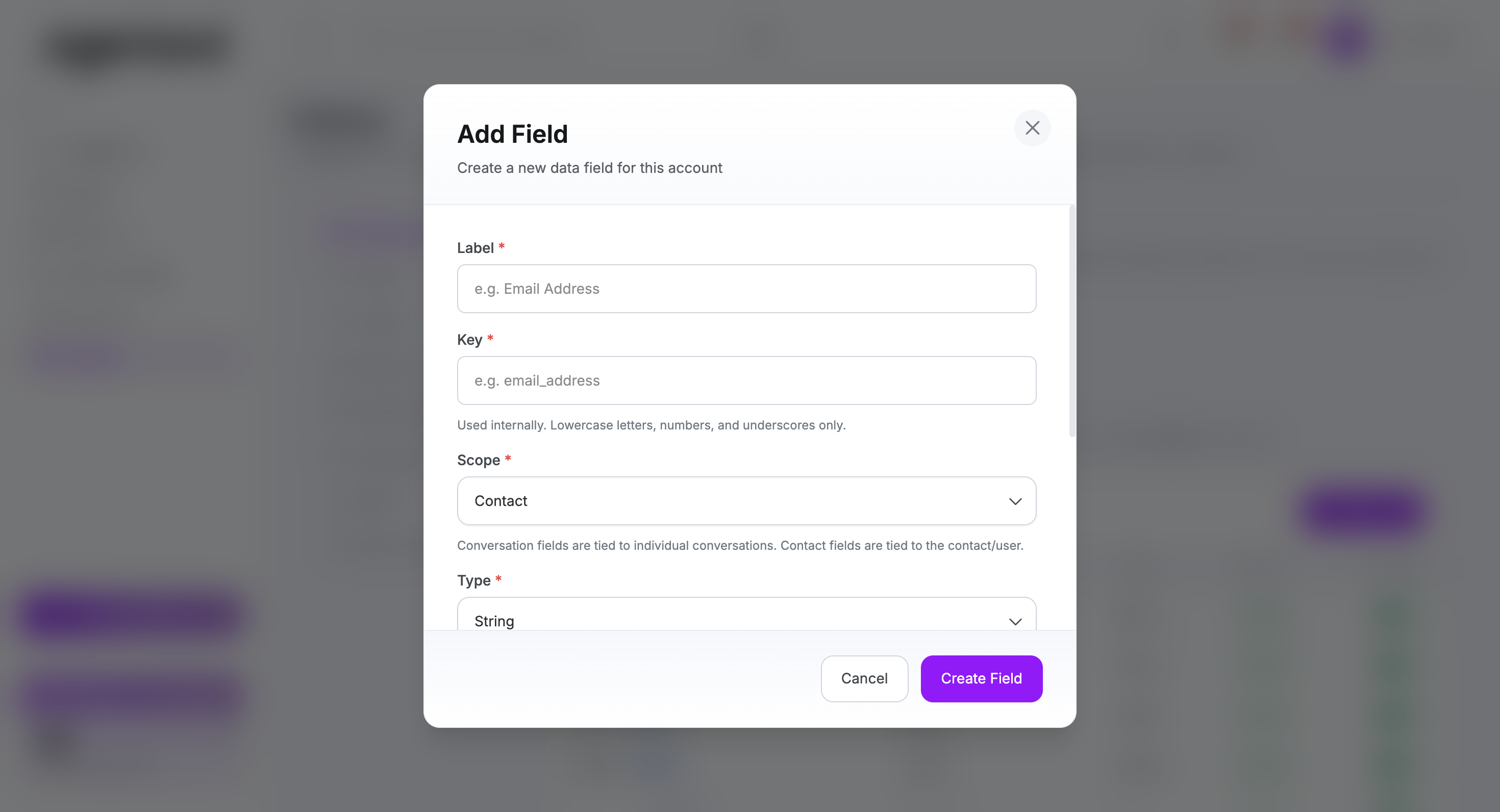
The Add Field dialog asks for:
- Label and Key (internal identifier, lowercase with underscores)
- Scope (conversation or contact)
- Type (string, number, boolean, date, enum, and specialized types where available)
- PII field when the value should be treated as personal data under your privacy settings
- Instructions (optional) so the model knows what to look for when extracting
Tags
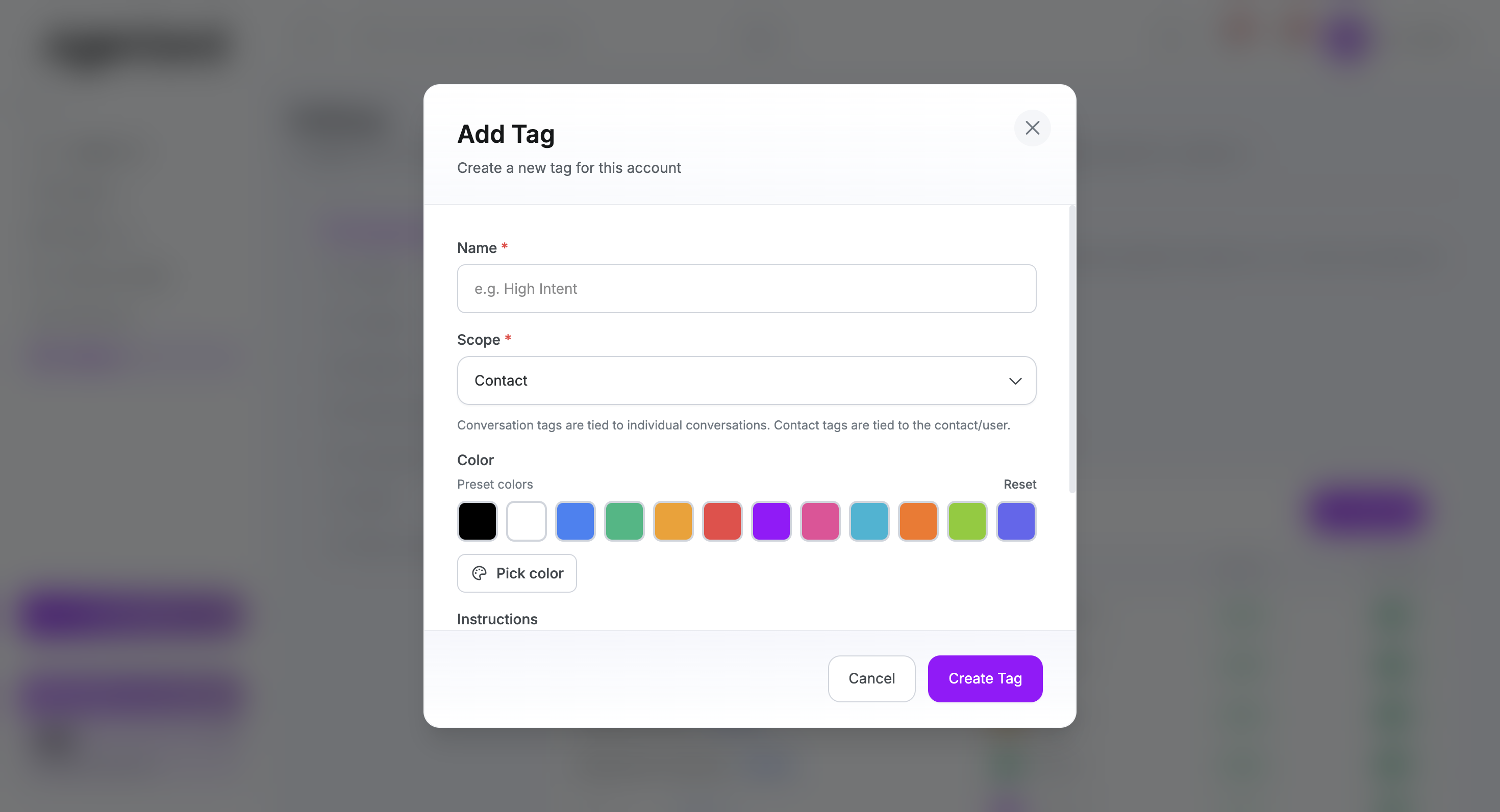
Open the Tags tab. Tags are grouped by Contact and Conversation scope. Use Add Tag to create a label for the account.
The Add Tag dialog asks for Name, Scope, Color (presets or custom), and optional Instructions for when the agent should apply the tag.
Per-agent behavior
Turning fields or tags on or off under Settings affects what exists account-wide. Which fields are filled and which tags are applied during a chat is controlled per agent on Fields & Tags for that agent (auto-populate and auto-apply toggles).