

Sources
Upload files and organize folders, and use the web crawler to extend what an agent can reference.
Sources let you attach documents and web content so the agent can ground answers in your real catalog, policies, and site.
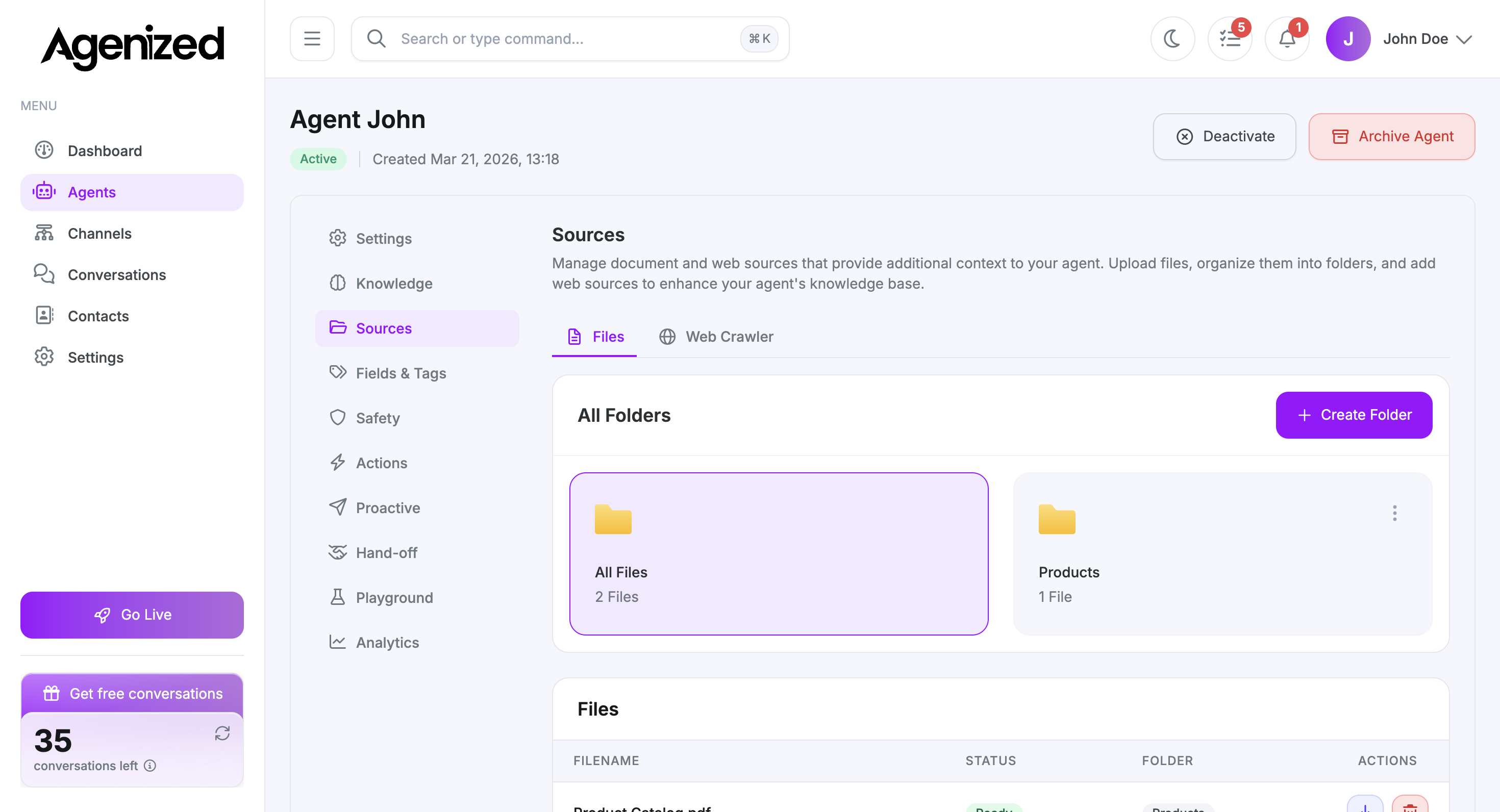
Use Files for PDFs and documents you control. Use Web Crawler to index URLs or sitemaps when that feature is enabled for your account.
Files and Web Crawler
Switch between:
-
Files: Upload and organize PDF, DOCX, and TXT files.
-
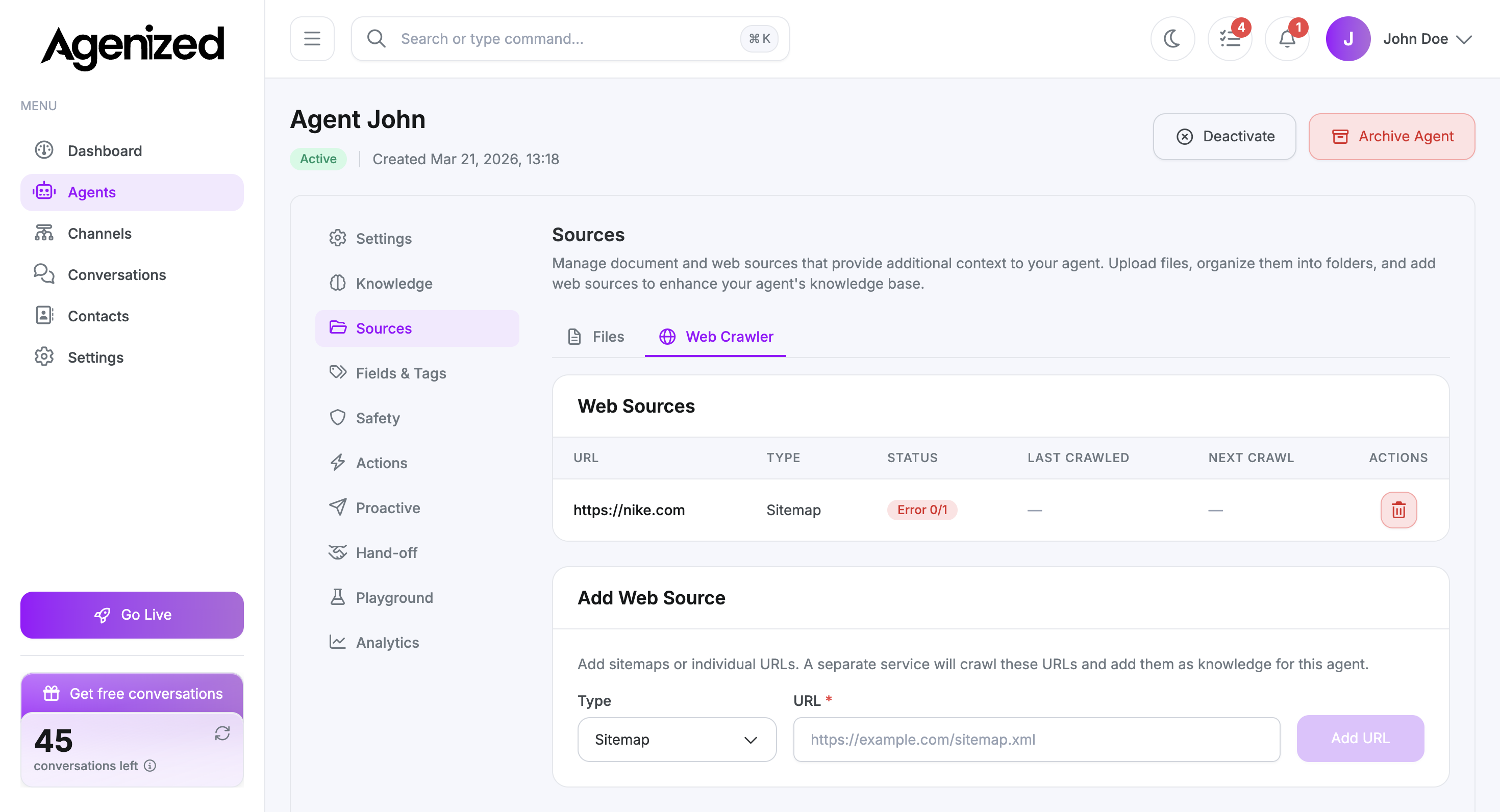
Web Crawler: Add or manage crawled URLs (when enabled for your account).
Files
Use Create Folder to group files (for example Products, Legal). Select a folder to filter the file list. All Files shows everything.
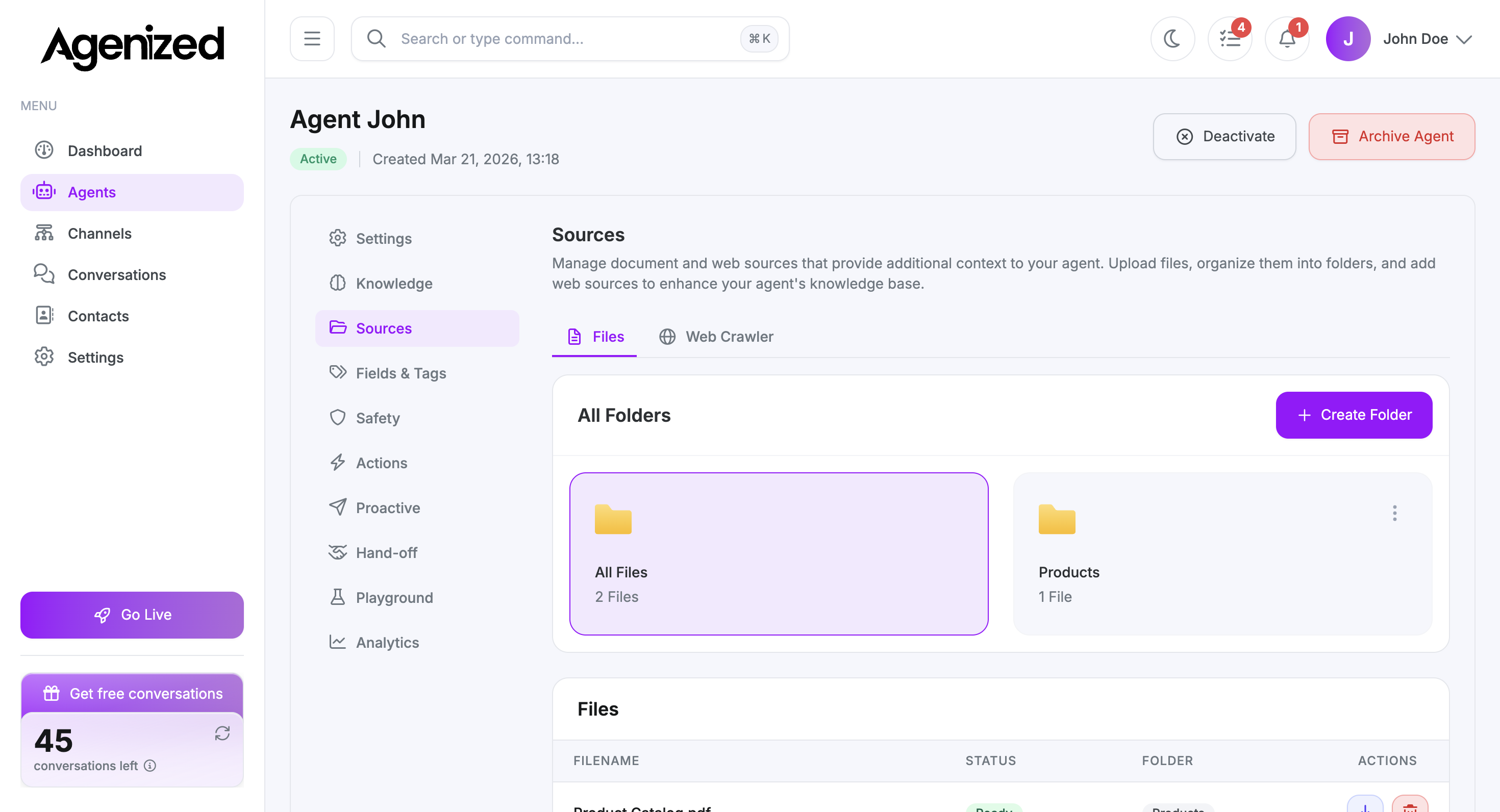
Drag files into the upload area or click to choose files. Processing status appears per file (for example Ready when indexing finished).
Web Crawler
Open the Web Crawler tab to see indexed web sources (URL or sitemap, status, crawl schedule where shown) and to Add URL with a type such as sitemap or single page.
File row actions
Each row typically offers download and delete.
Deleting removes that source from the agent’s retrieval set. There is no undo from the docs perspective, so confirm before removing the only copy of a policy or catalog file.
Good practices
- Prefer a few well-maintained documents over many outdated PDFs.
- Keep one canonical price list or policy doc to reduce contradictions.
- After large changes, spot-check answers in Playground.